Signature: labels for what you make
What Signature is, who can open it, and the four screens it's made of — Brand Kit, Label Studio, the label editor, and the Label Library.

Signature is where your studio gets a look and your products get labels. Set your palette, your type and your business details once, and every label you print carries them.
Its own header says it plainly: "Set your look once — it flows into every label."
Who can open it
Signature is a paid feature. Your workspace has access when any of these is true:
- Your plan is Maker or Studio.
- Your workspace is in the beta programme.
- You're inside a trial that hasn't expired.
Otherwise the Signature link doesn't appear in the nav, and going to the URL directly sends you back to your dashboard — the nav is a convenience, the server check is the actual gate. If a workspace's settings can't be read at all, access is refused rather than granted: the safe answer to "I'm not sure" is no.
The four screens
| Screen | What it's for |
|---|---|
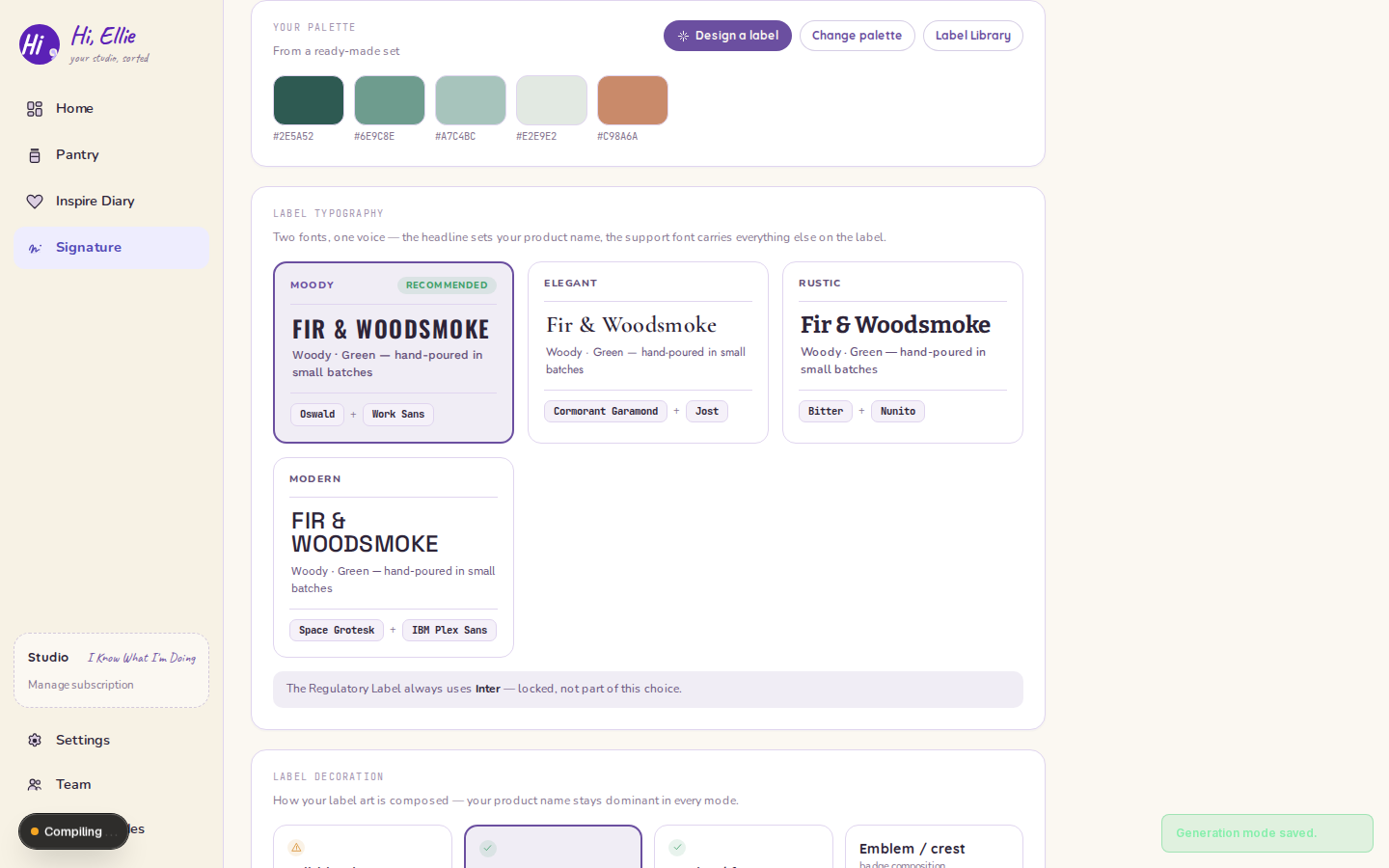
Brand Kit (/signature) | Your palette, logo, type pairing, and how label art is composed. Read more |
Label Studio (/signature/label) | Generate a label for a batch (or a generic one), preview it, and export. Read more |
| Label editor | Tweak the fields on a generated label and export it. Read more |
| Label Library | Everything you've saved, ready to reprint. Read more |
The order to do things in
- Lock a palette on the Brand Kit. Nothing downstream renders without one — Label Studio's whole surface is gated behind it, because the label's colour comes from your palette rather than from whatever the AI felt like.
- Pick how your art is composed — the decoration mode. This is worth doing before you generate anything; it changes what the generator is even asked for.
- Fill in your business details — they live in Settings and Signature shows them read-only, because the same details go on every label and a second place to edit them is a second place for them to be wrong.
- Generate a label in Label Studio, tweak it in the editor, save it to the Library.
Two labels, not one
A single saved label can back two printable ones:
- The Product Label — always. Your product name, your palette, your type, your decoration.
- The Regulatory Label — only when the label is tied to a completed production run, because that's what carries the lot code and the measured weight. A generic label has no run to anchor one to.
That split is why Label Studio asks you to pick a batch before it does anything else. See Label Studio.