The Label Library
Everything you've saved, ready to reprint — including the two-label download for a batch-linked label, and what happens when only half of it succeeds.
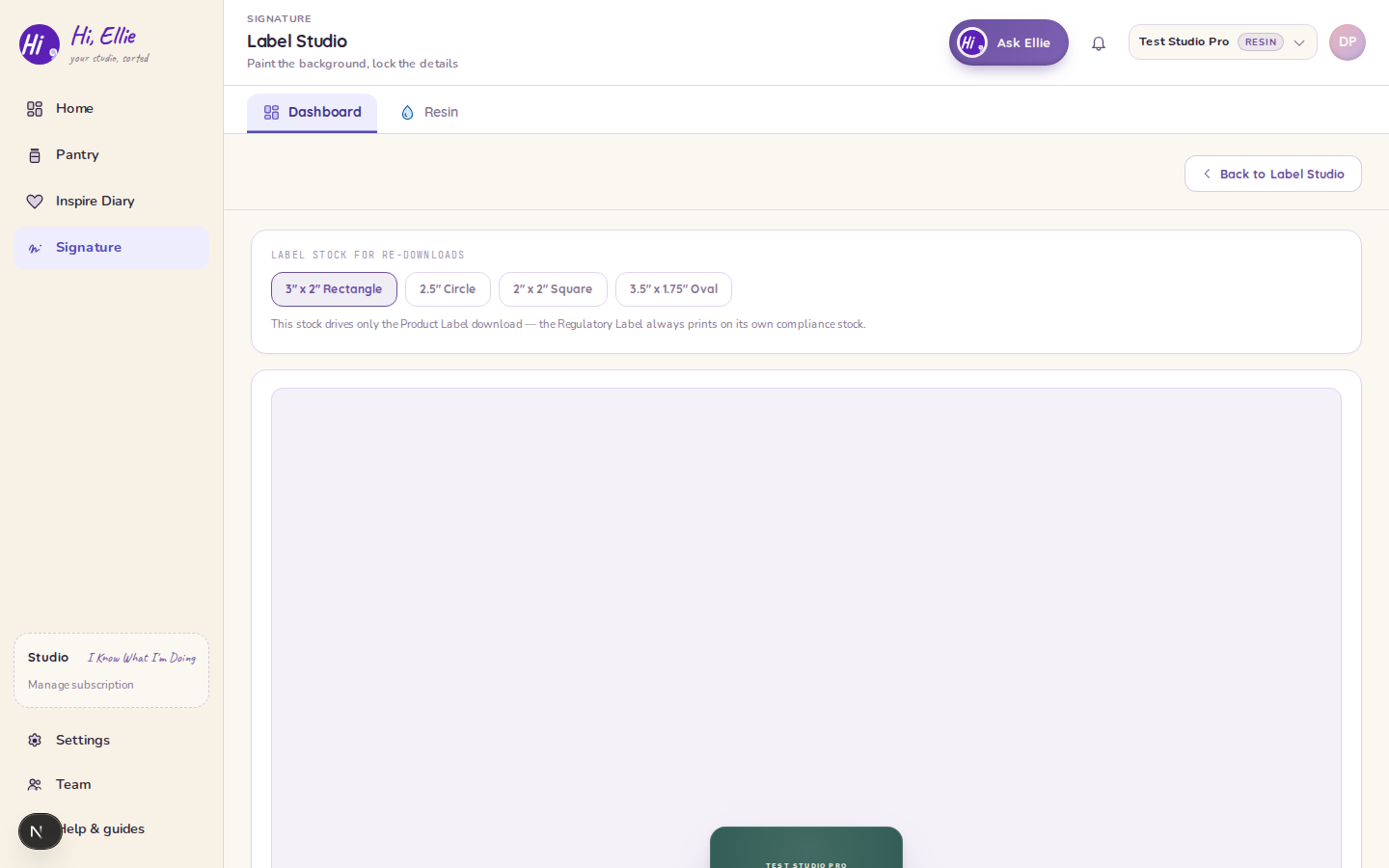
The Library holds every label you've saved, so a design outlives the session you made it in. Reach it from Label Library on your Brand Kit or from the Studio's header.
Saving a label
Save to Library — in Label Studio, and again in the label editor once you've tweaked one — bookmarks the variant you're looking at. Saving never overwrites anything — a save-as-new makes a new entry, so iterating on a design leaves the earlier one intact.
Reprinting
Each card offers a re-download. One label stock picker at the top of the page drives the Product download's size, so you can reprint an old design onto a different sheet without regenerating it.
The Library prints single labels only. For a full sheet, go back to the Studio, which owns the batch-sheet controls.
Two downloads for a batch-linked label
A label saved against a completed production run backs two printable labels — the Product Label and the Regulatory Label — and the card offers both.
They export one after the other, and they're not all-or-nothing: if the regulatory half fails (the run was deleted, say) the product label still downloads and you get a warning naming which half didn't. A generic label — one saved with no batch — has only the Product download, because there's no run to anchor a regulatory label to.
Removing a label
Un-save takes a label back out of the library. It doesn't delete the batch, the recipe, or anything else — just the bookmark.
What the Library is not
It isn't a version history of one design, and it isn't a print queue. It's a shelf of finished labels you're happy with. The place to iterate on a design is the editor; the place to make a new one is the Studio.