Label Studio: generating and exporting a label
Picking a batch, generating the label, reading the compliance panel, choosing your label stock, and printing one label or a whole sheet.

Label Studio is where a label actually gets made. Reach it from Design a label on your Brand Kit; for where it sits in the whole feature, see What Signature is.
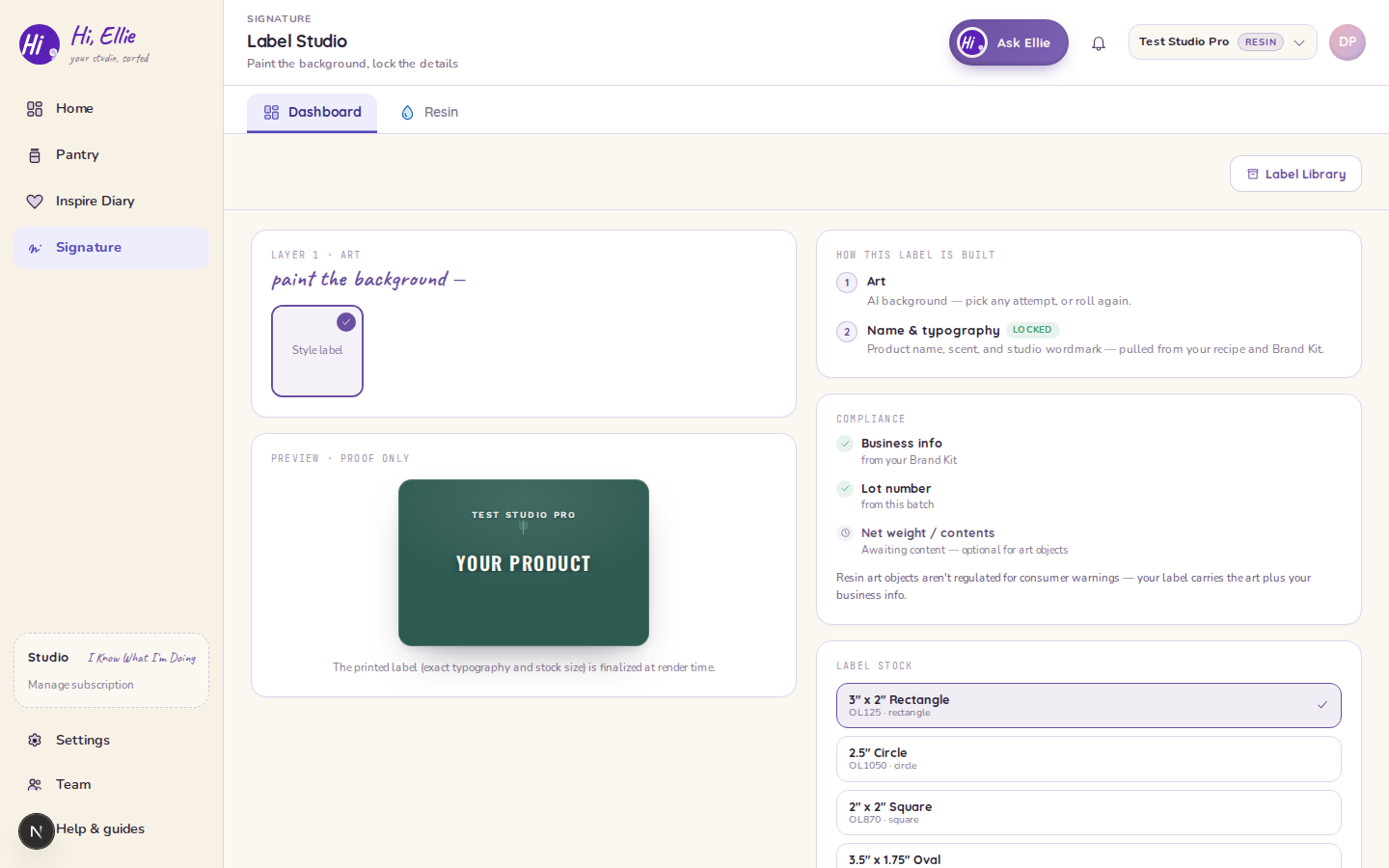
First: which batch?
The studio opens on a gate asking you to pick a completed production run — or to choose No batch — generic label.
It asks because the choice decides what the label can carry. A run brings its recipe, its craft, its lot code and its measured weight; a generic label has none of those and can only be the Product Label. If you arrive from a link that already names a run, the gate doesn't appear — the context is already bound.
How this label is built
The right-hand panel lays the label out as two layers, and says which is which:
- Art — "AI background — pick any attempt, or roll again."
- Name & typography — marked LOCKED: "Product name, scent, and studio wordmark — pulled from your recipe and Brand Kit."
Locked means exactly that. The generated layer can be re-rolled all day; the layer carrying your product's identity comes from your data, not from a model.
The compliance panel
What this card shows depends on your craft, and candle is the one that isn't a slot list at all.
On Bath & Body it's five rows:
- Business info — live, "from your Brand Kit".
- Lot number — live, "from this batch".
- Net weight / contents, regulatory warning and ingredient / fragrance line — all three reserved, all three currently reading awaiting: "cosmetic labeling — coming soon".
On resin, and in the no-craft "brand label" mode, it's three rows: the same two live ones, plus Net weight / contents reading awaiting for a different reason — "optional for art objects". A resin art object isn't a regulated consumer good, so there are no warning or ingredient slots to reserve.
On candle there are no slot rows. The card is a single paragraph, and what it says is the opposite of a promise: your product name and scent come from your saved recipe, and "this label doesn't carry net weight, ingredients, or safety warnings — those live on the Regulatory Label, printed from a completed batch." The branding label and the compliance label are two different labels on this craft.
What the panel does not do is claim a slot is handled when it isn't. See Ingredient statements and compliance for what a Bath & Body label can and can't do today.
Label stock
Pick the sheet you're printing onto. Four presets ship, and the default is the 3" × 2" Rectangle:
| Preset | Size |
|---|---|
| 3" × 2" Rectangle (default) | 3 × 2 in |
| 2.5" Circle | 2.5 in diameter |
| 2" × 2" Square | 2 × 2 in |
| 3.5" × 1.75" Oval | 3.5 × 1.75 in |
Your pick drives the exported PNG's real dimensions, so what you print matches the sheet in your printer.
One label or a sheet
Switch between single and batch. Batch tiles the same composited label N-up onto a US-Letter sheet, and the toggle shows how many fit on your chosen stock — computed the same way the server tiles it, so the number on screen is the number you get.
The on-screen preview is a proof: it says so under it, "The printed label (exact typography and stock size) is finalized at render time." The downloaded PNG is the authoritative one — it's composited server-side and carries the lot code where the proof doesn't.
Where to go from here
- Edit label opens the label editor with this generation loaded.
- Save to Library bookmarks it so it survives past this session — see The Label Library.
- Download / Print export it now.
If a render fails you get an error toast and stay where you are — nothing navigates away and nothing is lost.