Team: inviting people and what each role can do
Invite people into your studio on the Studio plan, set what each member can do, and — if you were invited — how to join and switch between studios.

On the Studio plan you can bring other people into your studio — a partner, an assistant, anyone who works alongside you. Everyone shares the same recipes, pantry, and pour history, and you decide what each person is allowed to do.
Inviting people to your studio
Team is a Studio-plan feature, and only the owner of the workspace can manage it. If you're on Studio and you own the workspace, you'll see a Team item in the left nav rail. (A beta account does not include Team — beta lifts your usage limits, but it doesn't unlock Studio features. If you're on the free or Maker plan, you won't see Team either.)
To invite someone:
- Open Team from the nav rail.
- Enter the person's email address.
- Pick a role — Owner, Editor, or Viewer (see below).
- Send the invite. They'll get an email with a link to join.
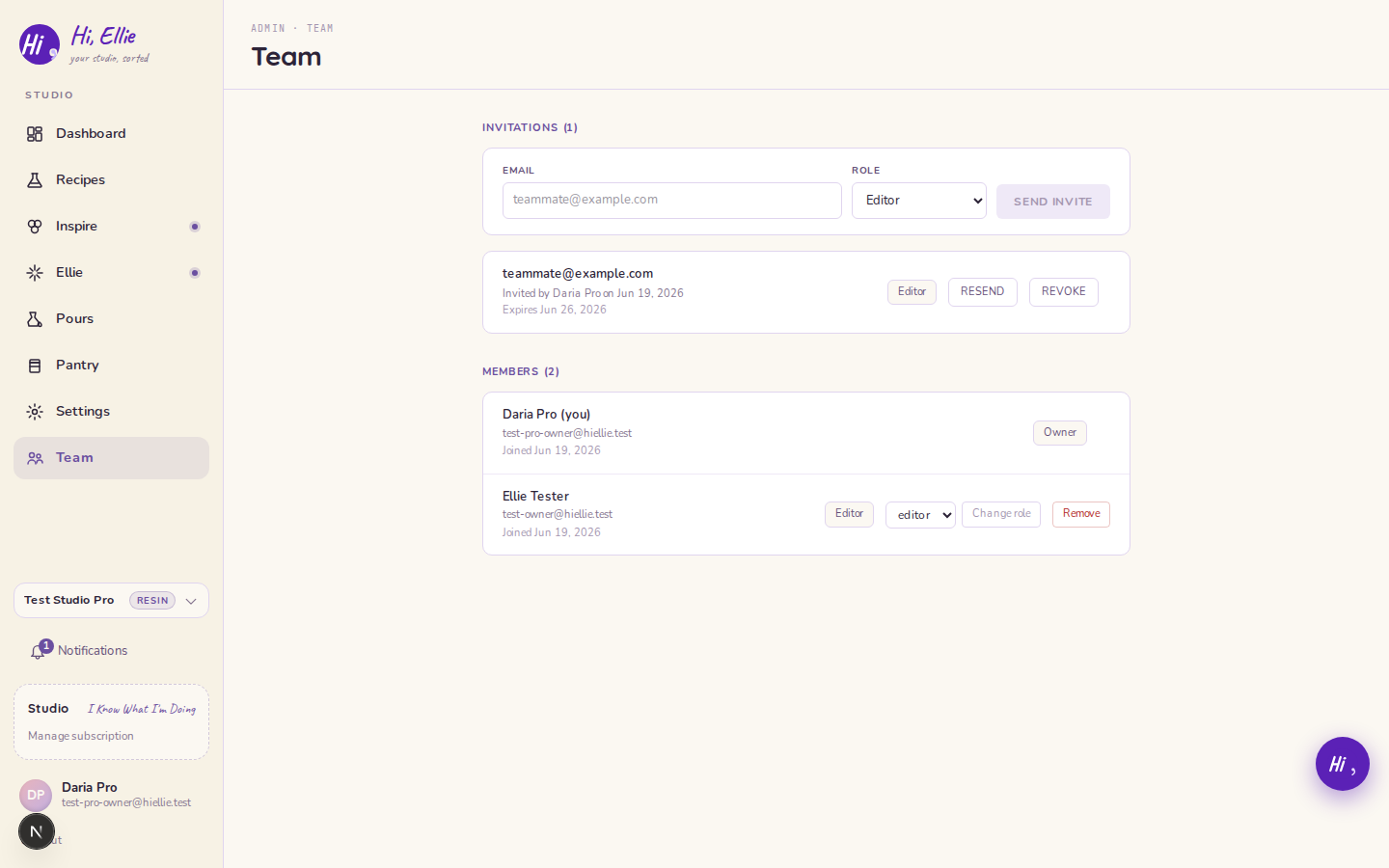
Five seats total. A studio can hold up to 5 people, including you. Once you've filled all five seats — counting both members who've joined and invites still pending — a sixth invite is refused. To make room, revoke a pending invite or remove a member.
Resend or revoke. For an invite that's still pending, you can:
- Resend the email if it got lost (there's a short cooldown between resends).
- Revoke it to cancel the invitation entirely.
For the full plan picture — what Studio unlocks alongside Team — see Free plan limits & what upgrading unlocks.
What owners, editors, and viewers can do
There are three roles. This is the part that answers "why can't my teammate change the equipment settings?"
| Role | What they can do |
|---|---|
| Owner | Everything. Controls studio settings (equipment toggles, material cost / COGS, experience level), and manages the team — invites, roles, and removing members. |
| Editor | Full read/write on recipes, the pantry, and pours — they can build recipes, add colorants and resins, and run pour sessions. Owner-only studio settings appear disabled, with a note: "Only the workspace owner can change this." |
| Viewer | Read-only. They can look through everything in the studio, but can't add, edit, or delete. |
So if an editor can't flip a pressure-pot toggle or change the experience level, that's expected — those are owner-only studio settings, not a bug.
Personal preferences are open to everyone. No matter your role, your own voice, your temperature unit (F or C), and restarting the tour are yours to set — they affect only your view, not the studio.
If someone invited you
When you're invited to a studio, you'll get an email with a link.
- Click the link in the email. You're signed in on the first click — this works whether or not you already have a Hi Ellie account.
- Sign in with the invited email — the address the invite was sent to.
- You'll land in the studio you were invited to, with the role the owner gave you.
If you already had your own studio, you now belong to two. Use the workspace switcher near the top of the app to move between your own studio and the one you joined — see Finding your way around for where it lives and how switching works. Each studio keeps its own settings, so something like your temperature unit can be different in each one.