Finding your way around: navigation and the two ways to reach Ellie
How to get around Hi Ellie on desktop and mobile, how to switch between your crafts, and the difference between the Ellie Wizard and Ask Ellie.

Hi Ellie looks a little different on a phone versus a computer, but the same features are in both. This guide walks the layout on each, shows how to move between your crafts, and clears up the one thing makers ask about most: the two different ways to reach Ellie.
Your crafts, and switching between them
Your studio can hold more than one craft — resin, candle, and Bath & Body are all available today. Each craft has its own recipes, its own pantry shelves, and its own pour or batch history, all under the same studio.
At the top of the app you'll see a row of craft tabs: a Dashboard tab plus one tab per craft you make in — Resin, Candle, and so on. Tap a craft tab to make it active. Everything craft-specific — your recipes, your pantry, the wizard — then follows the craft you're in. The Dashboard tab is the cross-craft home that shows your whole studio at a glance.
Heads up: switching crafts changes what the craft-specific menu items point at. In a Resin workspace your pantry shows Colorants, Resins, Molds and Supplies; in a Candle workspace it shows Waxes, Wicks, Fragrance Oils and Vessels. Your "Pours" become "Batches," and a Scent Studio appears for blending fragrances.
Desktop navigation
On desktop, a rail runs down the left edge of the screen, grouped top to bottom into three parts.
Your studio (always visible):
| Item | Where it takes you |
|---|---|
| Home | Your dashboard |
| Pantry | Your shelf — the categories shown depend on your active craft |
| Inspire Diary | Your saved Inspire sessions and palettes, across every craft |
Your active craft (coloured to match the craft you're in):
| Item | Where it takes you |
|---|---|
| Recipes | Your recipe library for this craft |
| Pours / Batches | Your pour or batch history (resin says "Pours," candle says "Batches") |
| Ellie Wizard | The recipe wizard — build a new recipe from scratch |
| Inspire | Turn a photo or a mood into a palette matched to your shelf |
| Scent Studio | Blend fragrances (candle and Bath & Body only) |
At the bottom:
- Settings — your account, voice, and studio settings.
- Team — manage who's in your studio. This appears only if you own a Studio-plan workspace; see Team: inviting people and what each role can do.
- Help & guides — opens this help center in a new tab.
Mobile navigation
On mobile the navigation is split between the top and the bottom of the screen.
At the top: the same craft tabs (Dashboard · Resin · Candle · …) for switching crafts, and — just below them — a wrapping row of chips for your active craft's tools (Recipes, Pours/Batches, Ellie Wizard, Inspire, and Scent Studio where it applies). On the Dashboard tab those chips are replaced by a short hint line, since the dashboard is cross-craft.
At the bottom: a tab bar with five slots.
| Tab | What it does |
|---|---|
| Home | Your dashboard |
| Pantry | Your shelf |
| Ask Ellie (center) | Opens the assistant — the raised center dome |
| Inspire Diary | Your saved Inspire sessions and palettes |
| Profile | Opens your profile menu — Settings, Team (Studio owners), Help & guides, and Sign out |
Good to know: the raised Ask Ellie dome in the center opens the assistant chat — it does not open the recipe wizard. To build a recipe on mobile, use the Ellie Wizard chip in your craft's tool row. This changed in a recent redesign, so if you remembered the center button opening the wizard, that's why it feels different.
Two ways to reach Ellie
Hi Ellie has two Ellie entry points, and they do different things. This is the single most common source of confusion, so it's worth a minute.
The Ellie Wizard — for making something new
The Ellie Wizard (the Ellie Wizard item in your craft's menu, or /ellie) opens the recipe wizard. This is where Ellie helps you build a new recipe from scratch — you describe your idea, make a few picks, and Ellie generates a full recipe with amounts and steps tuned to your craft.
Use this when you want to create something new.
Ask Ellie — for questions and quick help
Ask Ellie opens the assistant chat dock — a conversational space where you can ask questions, look things up in your studio, get advice, and make changes. Reach it from the Ask Ellie pill in the top bar on desktop, or the Ask Ellie dome in the center of the mobile tab bar.
Use this when you want to ask something or get help.
In short: The Ellie Wizard creates recipes. Ask Ellie answers questions and helps you manage your studio. Both are useful — they just do different things.
Handoff buttons
Several places in the app have buttons that open Ellie with context already loaded — things like "Feed this to Ellie" on an Inspire result, or "Open in Ellie" on your shopping list. These open Ask Ellie (the assistant), not the wizard.
Switching between studios
If you belong to more than one studio — say, your own and one you were invited into — a workspace switcher lets you move between them: near the top of the app on desktop, or inside your Profile menu on mobile. (This is different from the craft tabs above: craft tabs switch crafts within one studio; the workspace switcher moves you between separate studios.) Pick another studio and your active context switches — the dashboard reloads there, and everything you see is now that studio's.
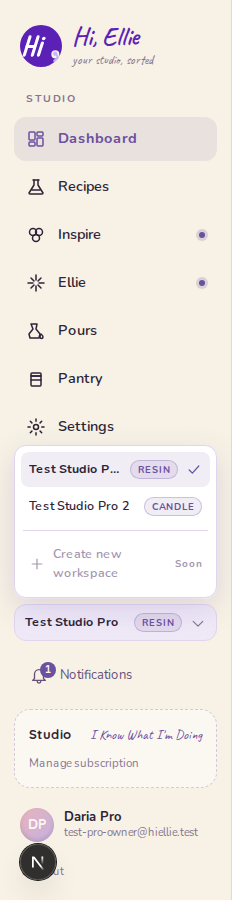
Each studio keeps its own settings, so something like your temperature unit can be set differently in each. You'll also see a Create new workspace option in the switcher — it's there as a preview but isn't available yet ("coming soon").
The notification bell
The bell icon in the top-right corner shows low-stock alerts. A badge appears when you have unread notifications. Tap it to see what's running low and jump straight to those items in your pantry.