Bench Mode: hands-free voice guidance for your pour
Bench Mode reads your pour steps aloud and listens for voice commands — no screen tapping required while your hands are busy.

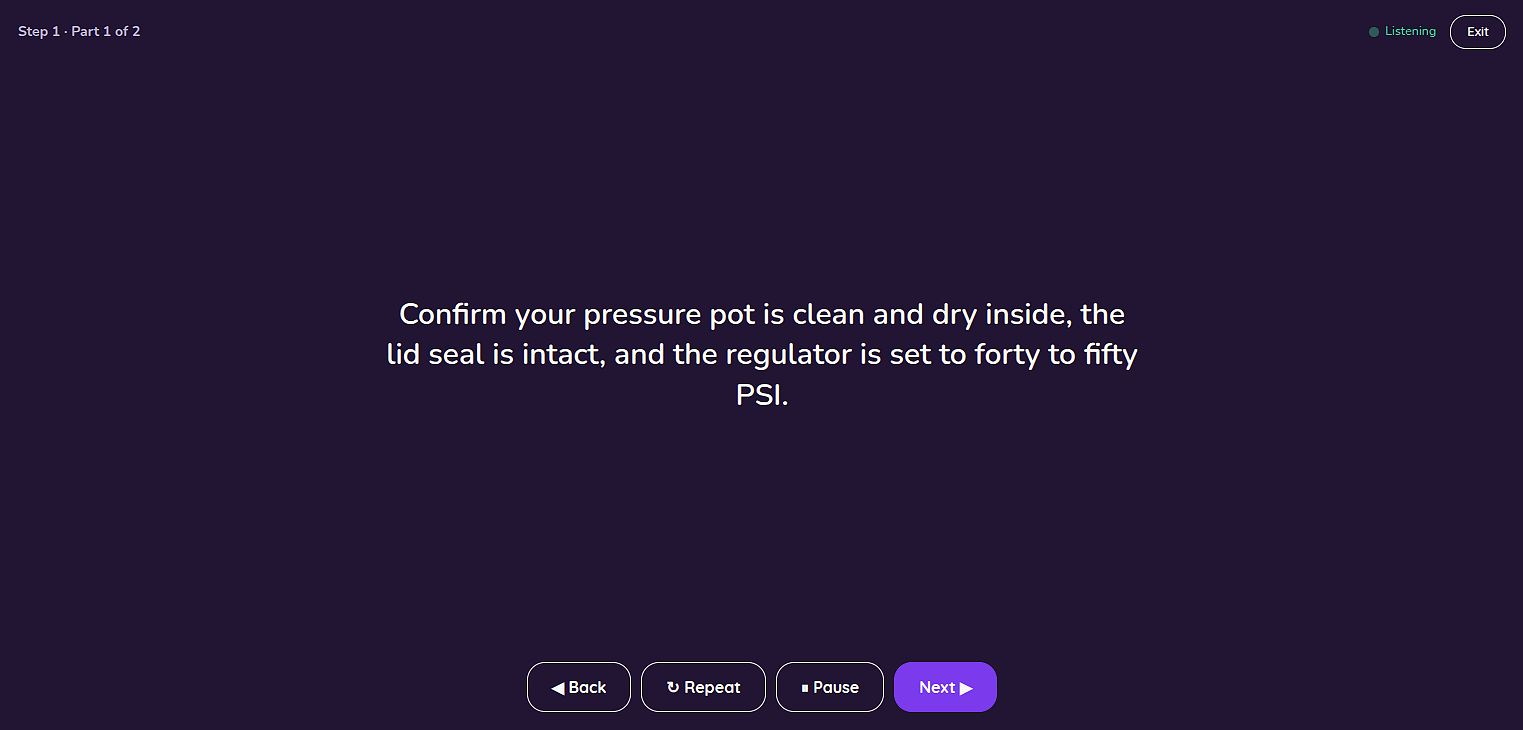
Bench Mode turns your pour session into a hands-free experience. Ellie reads each step aloud, listens for your voice commands, and answers questions — so you can stay focused on the work, not the screen.
Starting Bench Mode
Open a pour session and tap the Bench Mode button (the one with the chat icon) just below the recipe name.
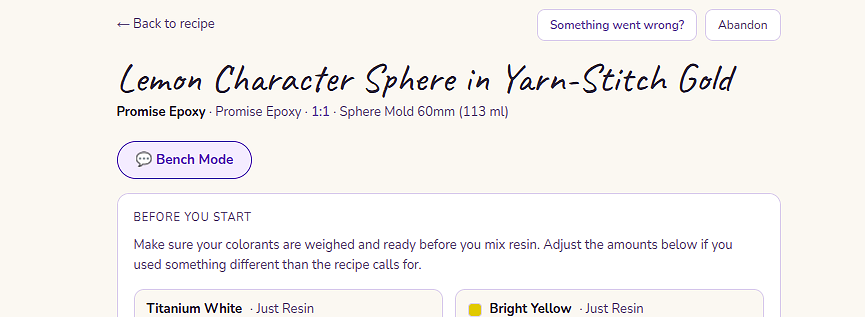
The first time you use it, your browser will ask for microphone permission. Tap Allow — Bench Mode can't listen without it.
Ellie will briefly show "Getting ready…" while she prepares your steps, then begin reading the first one aloud.
Voice commands
Once Bench Mode is active, Ellie is listening for her name followed by a command — say them together in one breath:
| Say | What happens |
|---|---|
| "Ellie, next" | Advance to the next step |
| "Ellie, back" | Go back one step |
| "Ellie, repeat" | Hear the current step again |
| "Ellie, pause" | Stop listening temporarily |
| "Ellie, resume" | Start listening again |
You can also ask Ellie a question: "Ellie, what happens if my resin starts heating up?" — she'll answer aloud and show the response on screen.
Important: The wake word and command need to go together. "Ellie" alone gets an acknowledgment, but "Ellie…" followed by a pause before the command may not register. Say it as one phrase: "Ellie, next."
Manual buttons
If you prefer not to use voice — or if the mic isn't picking you up — the Back, Repeat, Pause/Resume, and Next buttons are always available on screen. Bench Mode works just as well without voice.
Long steps
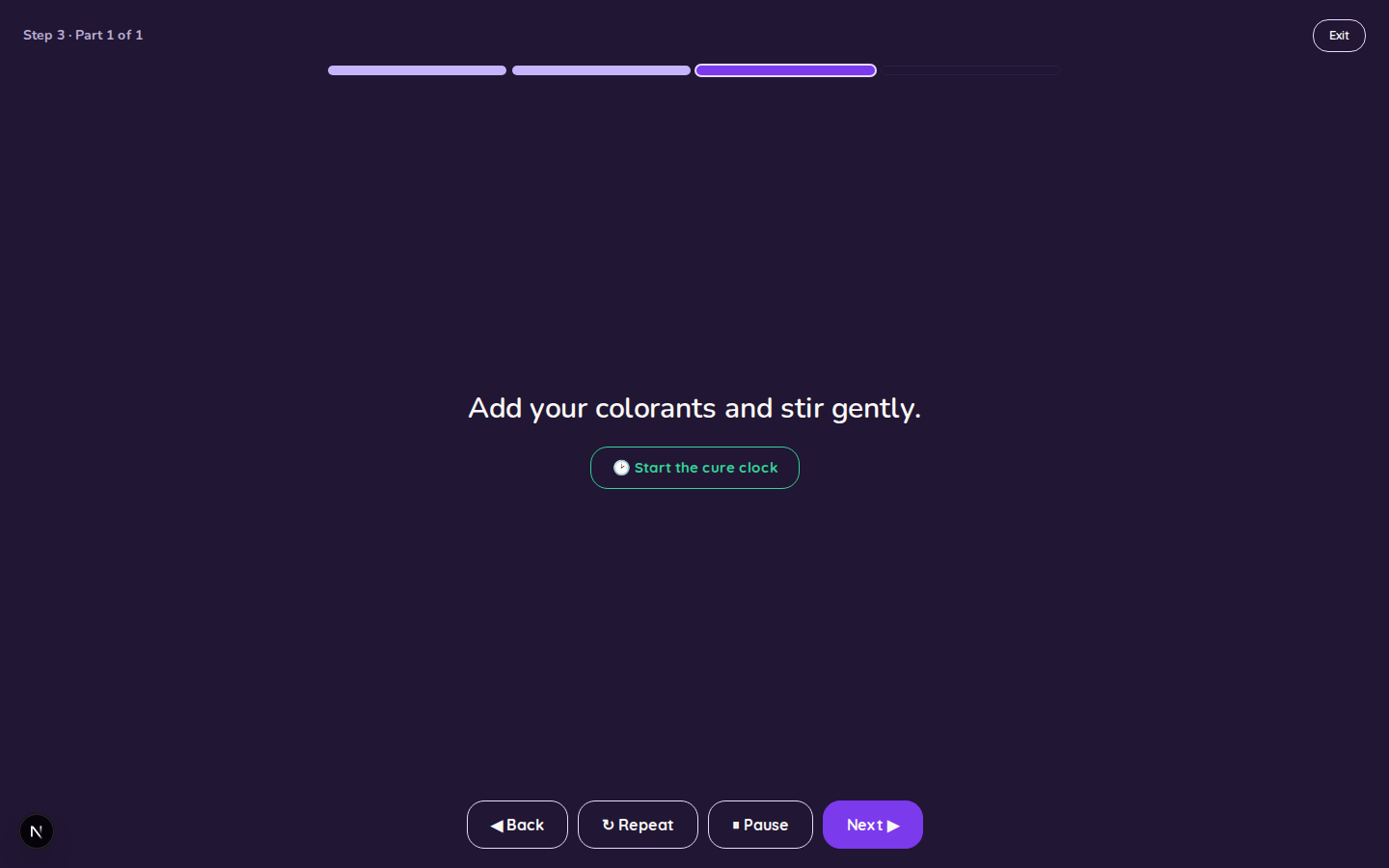
If a step has several actions in it (weigh your resin, mix A and B, stir for 60 seconds, etc.), Ellie breaks it into shorter sub-steps. "Ellie, next" moves through each sub-step before advancing to the numbered step.
A segmented progress bar runs across the top of the step view — one pill per step in your recipe. The steps you've finished are filled in, the step you're on is highlighted, and the ones still ahead sit muted, so you can see at a glance how far along you are and how much is left.
What Bench Mode is (and isn't)
Bench Mode is read-only guidance. It walks you through your recipe's steps verbally — it doesn't control the pour session itself. You'll still need to tap Done → Next step and Complete pour in the main pour view when you're finished. Think of Bench Mode as a voice coach running alongside the session, not replacing it.
Sub-steps Ellie reads aloud don't always map one-to-one to the numbered steps in your recipe — she may break a complex step into several spoken parts.
Exiting Bench Mode
Tap the Exit pill button in the top right corner of the page to exit. The main pour session view will still be open and ready.
Screen staying on
While Bench Mode is active, Hi Ellie keeps your screen awake so it doesn't lock mid-pour. This works on Android Chrome and on iOS when the app is installed as a PWA (added to your home screen).
If your screen does lock — for example, on a browser that doesn't support the wake lock — the mic will stop listening. Unlock your screen and tap "Mic off — tap to re-engage" to resume. See Bench Mode troubleshooting for more.
Tips
- Install as a PWA on iOS (Add to Home Screen) for the best mic and screen-wake experience on iPhone and iPad.
- If the mic pill shows "Reconnecting…" and doesn't recover, exit and re-enter Bench Mode to start a fresh connection.
- The manual buttons always work — if voice isn't cooperating, fall back to tapping.