Talking to Ellie: push-to-talk and Conversation Mode
Two ways to talk to Ellie in the assistant dock — hold the mic for a quick question, or start a full hands-free conversation.

Ellie can listen and talk back right from the assistant dock — no typing required. There are two ways to use your voice, depending on whether you want a quick exchange or a full hands-free conversation.
Push-to-talk
The mic button in the input row is the fastest way to ask a single question.
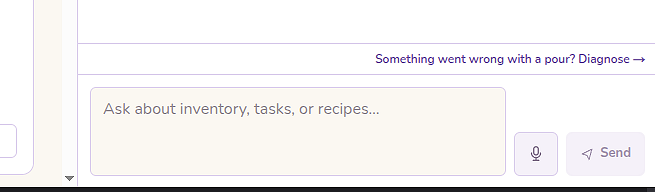
How to use it:
- Hold the mic button (or hold Space / Enter on a keyboard)
- Ask your question
- Release — Ellie transcribes what you said, responds in the chat, and reads the reply aloud
The mic is only open while you're holding the button, so there's no risk of accidentally sending something. When Conversation Mode is active, the push-to-talk button is disabled — one mode at a time.
Conversation Mode
Conversation Mode is for hands-free back-and-forth. Ellie listens, responds, and keeps listening for your next turn without you pressing anything.
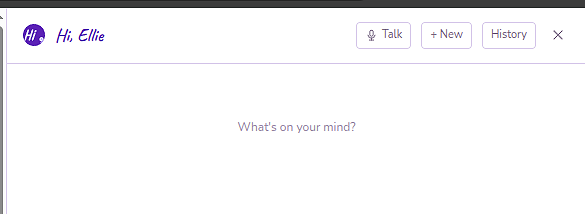
How to activate it: Tap Talk in the assistant dock header. The dock changes color to show you're in Conversation Mode:
- Desktop: the dock background shifts from cream to lilac
- Mobile: the dock header turns deep purple
A "Conversation Mode · listening" indicator appears with a pulsing mic so you always know the mic is open.
How it works:
- Speak naturally — Ellie detects when you've finished and responds automatically
- She reads her reply aloud while showing it in the chat
- The mic pauses while Ellie is speaking so she doesn't hear herself, then reopens when she's done
- Every exchange appears as a normal message in your chat history
Ending Conversation Mode:
- Tap Talk again to exit manually
- Say nothing for 2 minutes — Conversation Mode exits automatically and the dock returns to its normal color
- Navigate away from the page — Conversation Mode is session-scoped and exits on navigation
Screen staying on
While Conversation Mode is active, Hi Ellie keeps your screen awake so it doesn't lock mid-conversation. This works on Android Chrome and on iOS when the app is installed as a PWA (added to your Home Screen).
If the mic stops
If Ellie stops listening mid-conversation — due to a network drop or the app being backgrounded — you'll see a "Mic off — tap to re-engage" message. Tap it to restart the mic. Conversation Mode does not auto-resume after the app is backgrounded.
Voice recognition tips
- Name variants: Ellie sometimes hears "Ellie" as "Ali" or "Emily" — especially in push-to-talk when you open with her name. Hi Ellie recognizes common phonetic variants, so just keep talking — she understands the rest of your question.
- Background noise: Conversation Mode uses voice activity detection to know when you've stopped speaking. In a very noisy environment, push-to-talk gives you more control.
- Ellie's voice: You can change Ellie's voice (Ellie, Wren, Posy, or Felix) in Settings → Voice. You can also preview each voice before committing.
What gets saved
Every voice exchange appears as a normal message in your chat history — the same as if you'd typed it. Nothing is lost when you exit Conversation Mode.