Bulk import and export with spreadsheets
Move your pantry in and out with spreadsheets — download a template, map your columns, and upload, or export what you've got.

If you've got a lot to add at once — or just want a copy of what's in your pantry — you can work in a spreadsheet instead of adding items one at a time. You'll find this under Settings.
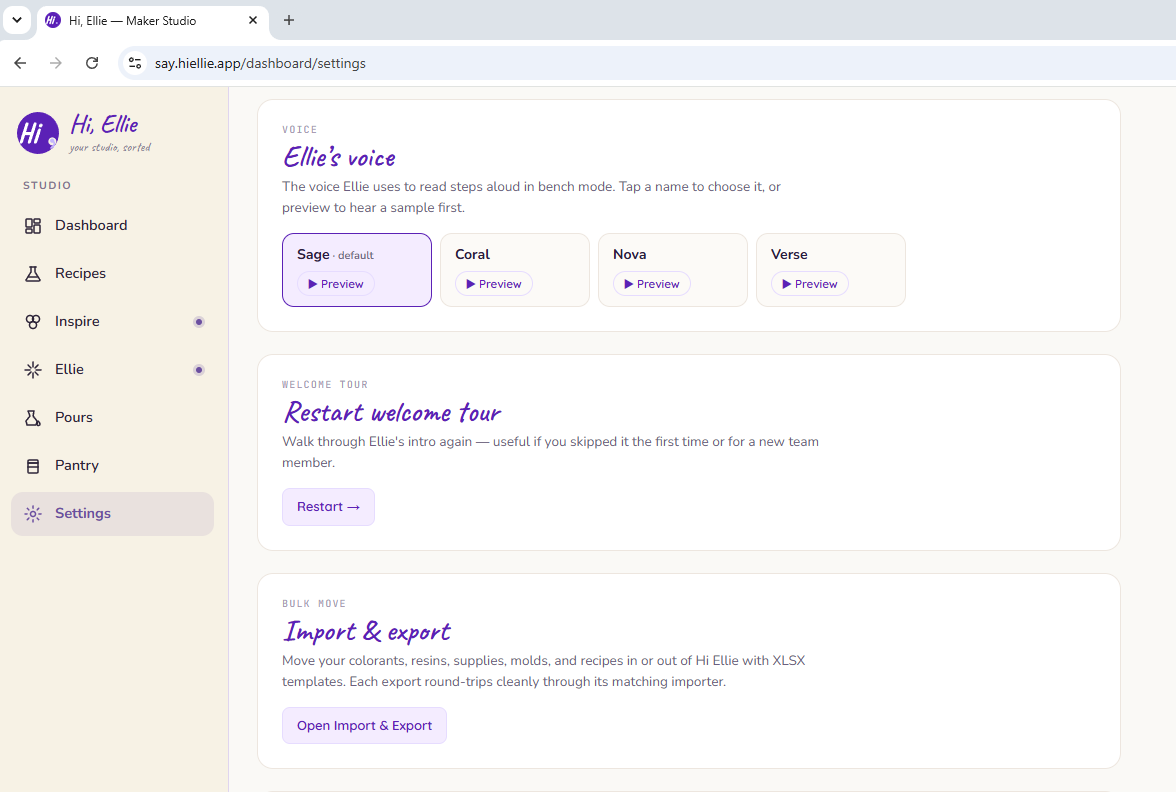
Importing
- Download the template so your columns line up.
- Fill it in and upload it.
- A result banner tells you what came in.
Heads up: It's an XLSX spreadsheet, not CSV. And importing is a Maker-plan feature — downloading the template and exporting stay free on every plan. See Free plan limits & what upgrading unlocks.
Exporting
Export pulls your pantry back out as a spreadsheet, so you always have a copy. Recipes export as a three-sheet workbook, keeping their parts organized across tabs.
Bulk Update Your Pantry
Export a copy of your current pantry, edit the spreadsheet, and then import it back in. This is a great way to update a lot of items at once.