Notifications: reading low-stock alerts
Hi Ellie notifies you when pantry items are running low or out of stock. Here's how to read and clear those alerts.

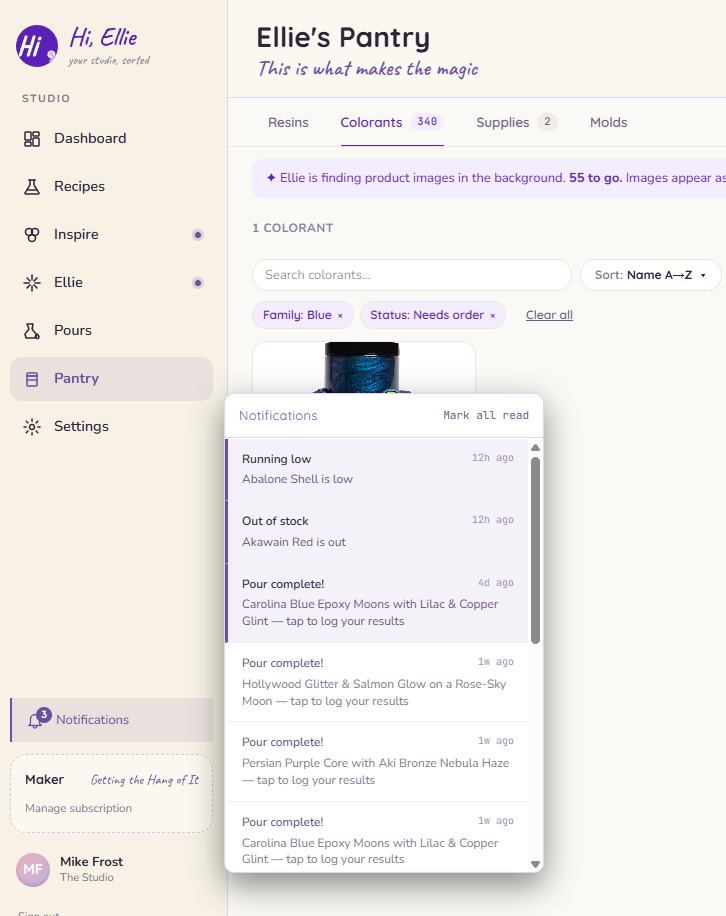
Hi Ellie monitors your pantry and sends you alerts when items are running low or out of stock. You'll see these in the notification panel — the bell icon in the top-right corner of the app.
The notification bell
A badge on the bell icon shows how many unread alerts you have. Tap the bell to open the notification panel.
Reading alerts
Each notification shows:
- The item name and which pantry tab it's in (colorant, resin, mold, or supply)
- Its current stock status (Low, Out, or Needs order)
- When the alert was generated
Tap any notification to jump directly to that item in your pantry.
Marking as read
To clear individual alerts, tap the checkmark next to a notification. To clear all at once, tap Mark all as read at the top of the panel.
Marking an alert as read doesn't change the item's stock status — it just clears the notification. The item will stay Low or Out in your pantry until you update it.
What triggers notifications
Currently, Hi Ellie sends alerts when a pantry item's status is set to Low, Out, or Needs order — either because you set it manually, or because a completed pour session reduced the quantity to zero.
There are no notification preferences or toggles at this time. All low-stock alerts are delivered to all workspace members.
No alerts?
If you're not seeing any alerts, your pantry items may all be marked In stock. Check the Running low section on your dashboard for a quick overview of anything that needs attention.